How to add an AI assistant to your website
The whole install is one line of code in your site's footer. Here is exactly where it goes on WordPress, Shopify, Wix, Squarespace, Webflow and Framer, and what to check before you go live.
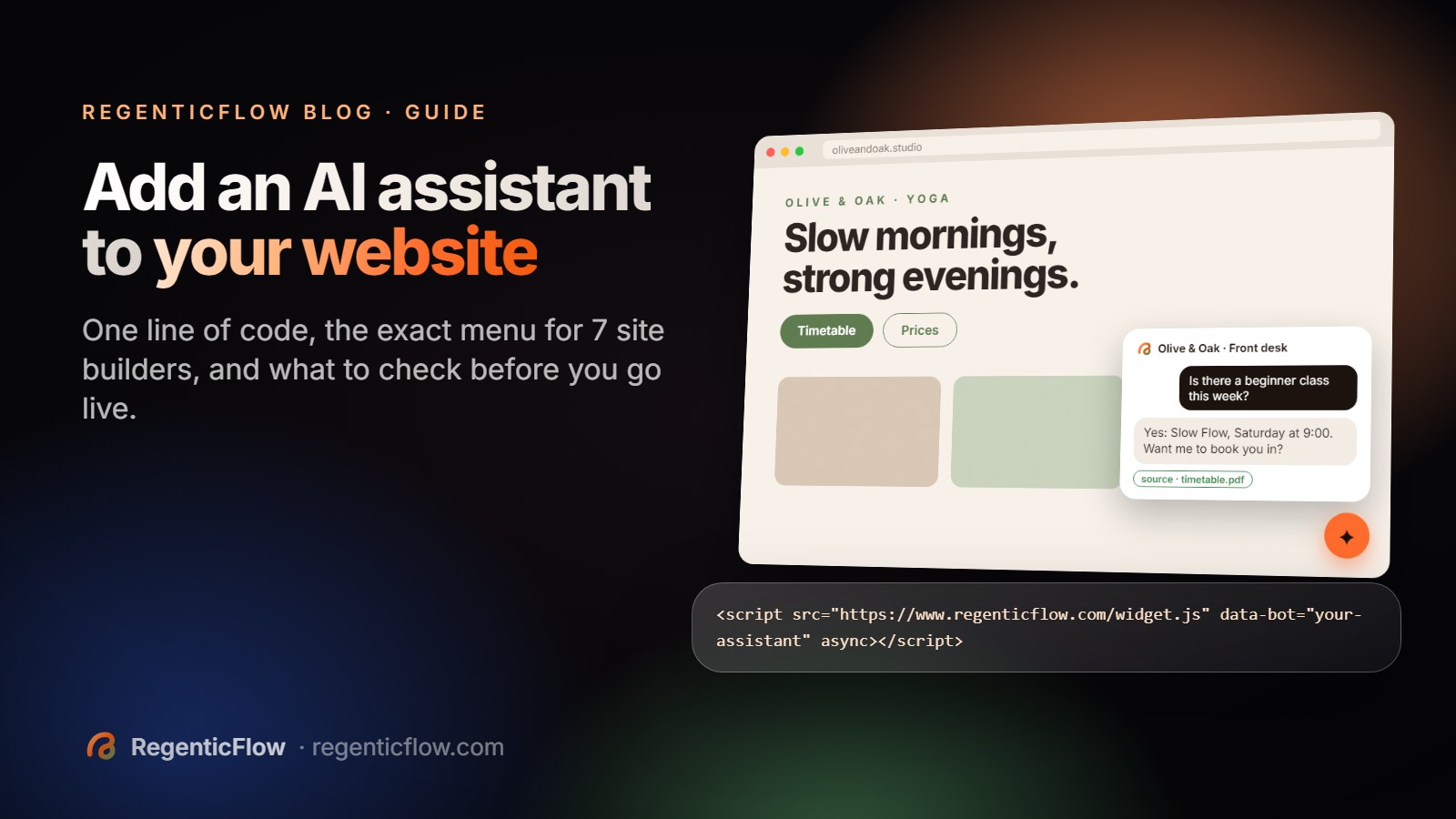
On most websites you add an AI assistant by pasting one line of code into the site footer. In WordPress that's a header-and-footer plugin; in Shopify it's your theme's theme.liquid file; Wix, Squarespace, Webflow and Framer each have a custom code setting. Before that, you need the assistant itself, set up from your own documents.
That second sentence is where most guides stop, and it's the part that decides whether the thing on your site is useful or embarrassing. So this guide covers both halves: getting an assistant worth putting on your site, then the exact menu for each builder.
What do you need before you add an AI assistant to your website?
Three things, and none of them is technical.
- The documents your customers' answers already live in. Your price list, your FAQ, your policies and your timetable. In RegenticFlow you can upload PDFs, text files, photos of documents and forwarded emails, pick files from Google Drive, or import pages from your existing website. If you've answered a question more than twice by email, the answer belongs in one of these.
- A decision about what it should do beyond answering. Book appointments into your Google Calendar? Save the details of people who want a quote? Hand a conversation to you when someone asks for a person? Each of these is a switch, and you can start with answering only.
- The domains it's allowed to run on. The embed only runs on sites you list. That stops someone copying your code onto their own page and running up your usage.
Setting this up takes most people an afternoon, and nearly all of that is finding the right documents, not using the software.
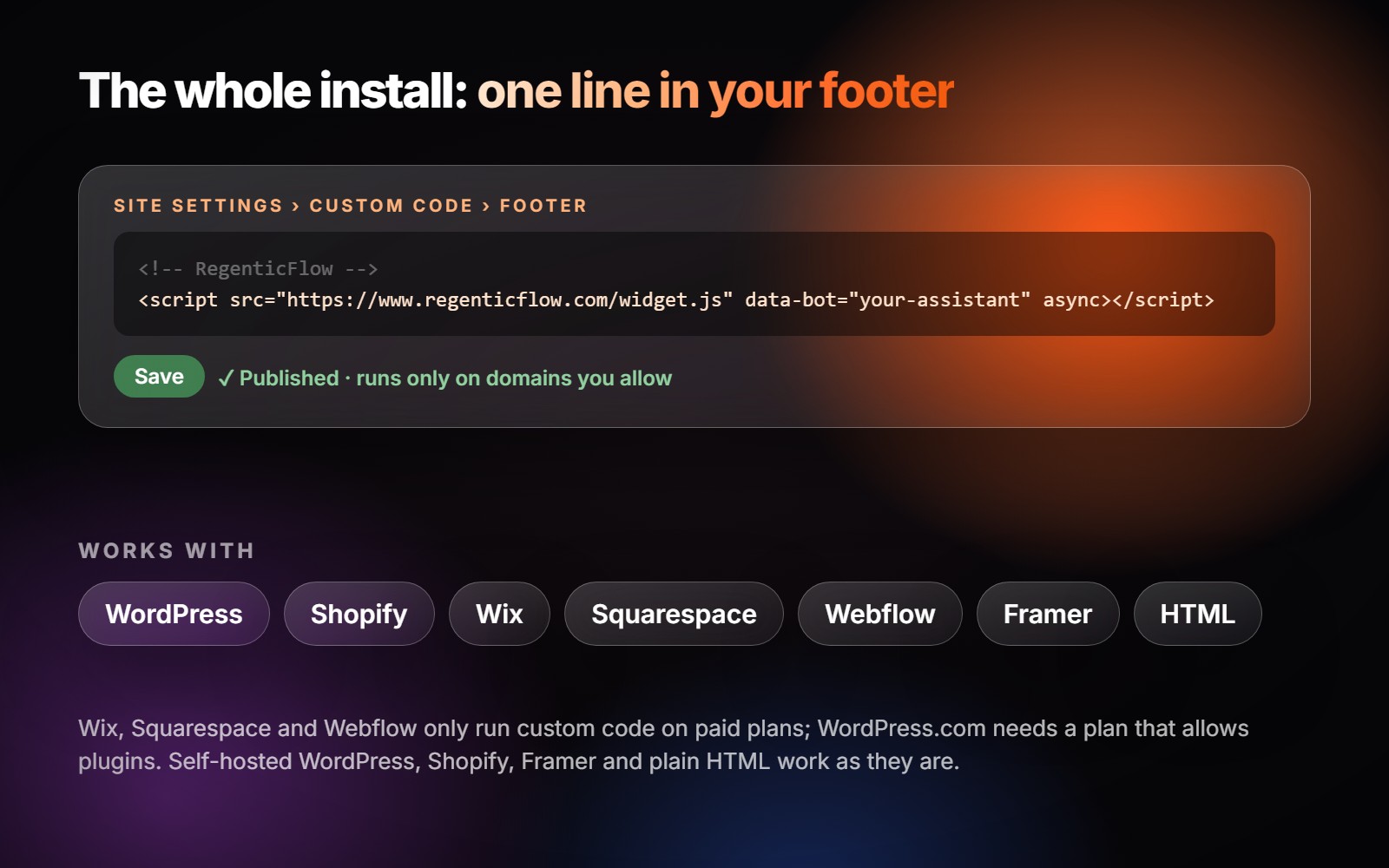
Where exactly does the line go?
This is the whole line. You copy yours from the Share tab, where data-bot is already filled in:
<script src="https://www.regenticflow.com/widget.js" data-bot="your-assistant-id" async></script>
Then paste it here:
| Site builder | Where to paste it | Worth knowing first |
|---|---|---|
| WordPress | Install the free WPCode plugin, then Code Snippets → Header & Footer → Footer box → Save | WordPress.com sites need a plan that allows plugins. Self-hosted WordPress works as is. |
| Shopify | Online Store → Themes → ⋯ → Edit code → theme.liquid, just above </body> → Save | Works on any plan. |
| Wix | Settings → Custom Code → + Add Custom Code → All pages, Body – end → Apply | Needs a premium plan and a connected domain. |
| Squarespace | Settings → Advanced (or Developer Tools) → Code Injection → Footer → Save | Only on plans that include Code Injection. |
| Webflow | Site settings → Custom code → Footer code → Save, then publish | Needs a paid site plan. Nothing changes until you publish. |
| Framer | Site Settings → General → Custom Code → "End of <body> tag" → publish | Works as is. |
| Anything else | Your shared footer or layout template, just before </body> | If you didn't build the site, send this page to whoever did. |
We check these menus by hand, because site builders move them around. If one doesn't match what you see, the setting is almost always one level deeper under "Advanced" or "Developer".
How do you check it's working before customers see it?
Open your site in a private browser window, so you see it the way a new visitor does, and run four checks:
- The bubble appears in the corner on a couple of different pages, including on your phone.
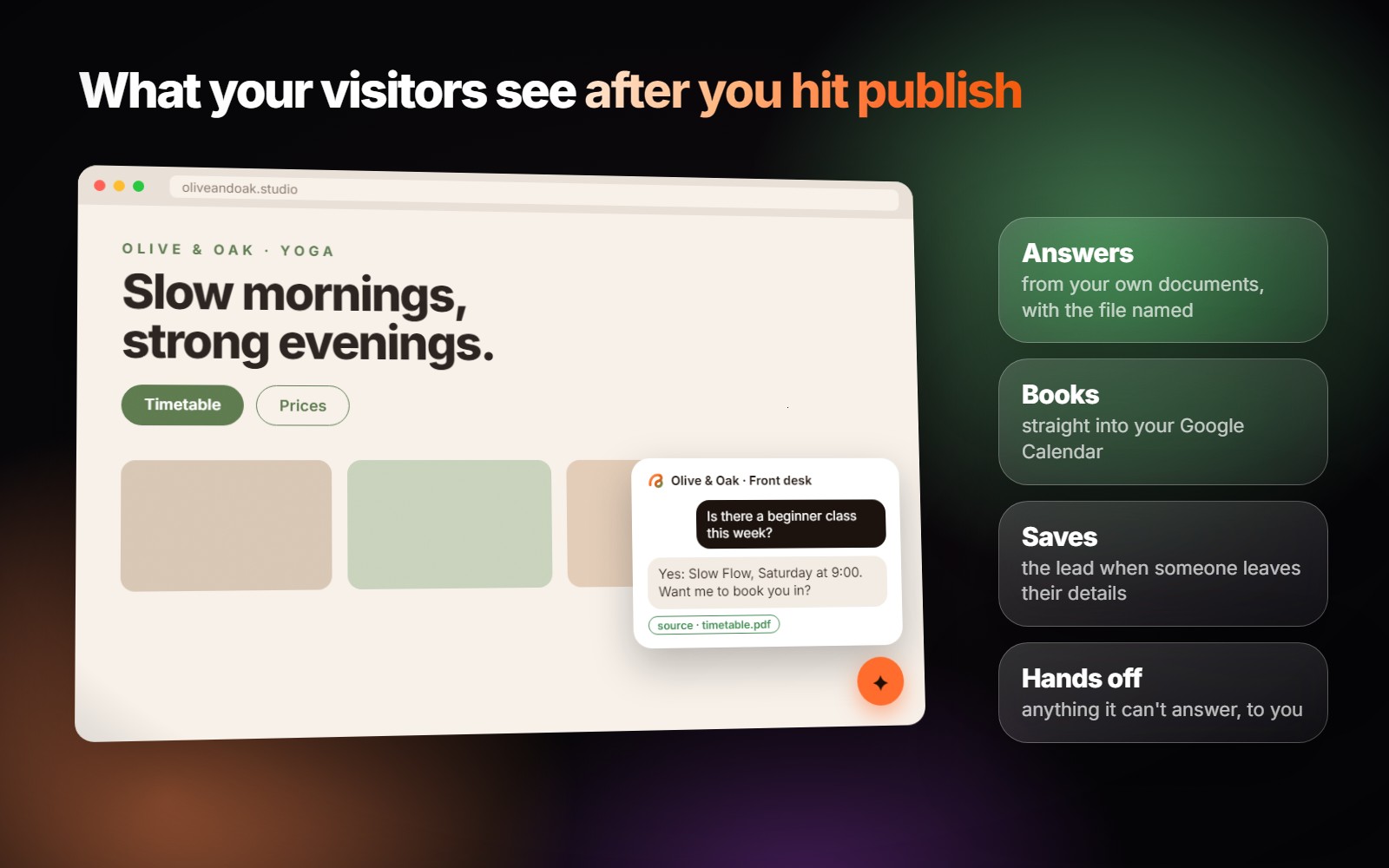
- Ask something your documents answer. For example, "What time do you open on Saturday?" The reply should be right and should name the file it came from.
- Ask something they don't cover. You want "I don't have that information", not a confident guess. If it guesses, stop there and read why AI chatbots make things up.
- If you turned on booking, book a test slot. It should appear on your Google Calendar, and both you and the "customer" should get a confirmation email.
Five minutes. Do it again whenever you change your documents.
Should the assistant be on every page?
For most small sites, yes. Customers don't ask questions where you'd like them to. They ask on the page they're reading. A question about parking arrives on the contact page, and a question about refunds arrives on a product page. Putting the line in the footer, as above, covers every page at once.
Two places where it's worth thinking twice: a checkout page, where you may not want anything competing for attention, and a page that's mostly for existing clients, where a different assistant might serve them better. On the Power plan you can run up to three assistants, each with its own documents.
And if you don't have a website, or you want the same assistant elsewhere, every assistant also has its own hosted page. You can use that link in your Instagram bio, in an email signature, or behind a QR code on your counter. Where assistants can live shows the options.
What it won't do
- It won't take phone calls. Voice works in the browser, on your site or hosted page, but it doesn't answer your phone line.
- It books into Google Calendar only. If you run your diary in Outlook or Calendly, booking won't connect yet. Answering and lead capture still work.
- It won't bypass your builder's plan limits. Wix, Squarespace and Webflow only run custom code on paid plans. That's their rule, and no widget can get around it.
- It only knows what you give it. If the answer isn't in your documents, it says so instead of making one up. That's deliberate.
FAQ
Will adding an AI assistant slow down my website?
The script loads with async, which means your page doesn't wait for it. Your content appears first and the chat bubble arrives a moment later, so it has no effect on how fast your page first shows up.
Do I need a developer to install it?
Not on WordPress, Shopify, Wix, Squarespace, Webflow or Framer. You paste one line into a settings box. On a custom-built site, the person who built it can add it in a minute.
Can someone copy my code and use my assistant on their site?
They can copy the line, but it won't run there. The embed only works on the domains you've allowed, and an empty list means it only runs on your hosted page.
Will my customers know they're talking to an AI?
Yes. Every public surface tells visitors they're talking to an AI, on your site, on the hosted page and in voice. We think that's the only honest way to do it.
Can it book appointments straight from my website?
Yes, if you connect Google Calendar. It offers real free slots, books the one the customer picks, and sends confirmations to both of you. There's more in can AI book appointments on my calendar.
Ready to try it on your own site? Start the 7-day trial: no card needed. Upload one document, paste the line, and run the four checks above before you tell anyone it's there.